


Your prints, just as you imagine them.
Get a first impression of what Mirage 2027 has to offer.
New in Mirage 2027
We have developed Mirage further in the places you encounter every day when printing: the final finish of your images, choosing colors, and getting started. The highlights at a glance.

Finish – your print like a framed picture
With the new “Finish” tab you print your image as if it were set in a mat and hanging on the wall. Mirage renders mat board, bevel edge and shadows realistically and prints everything together with your image – no real mat needed.
Mat and Accent Mat: optionally with a second, narrow mat, like a double mat; you choose the width, edge shape and board thickness yourself.
Real materials: from a plain color to textured paper. You can download more materials directly in Mirage, selected ones also in high resolution.
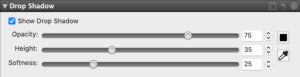
Shadows: a recess shadow makes the window look three-dimensional, a drop shadow makes the image float slightly above the paper.
Lighting: light style and direction determine whether the result looks Neutral, Warm or Spotlight. Your image itself is not changed.



Recess Shadow
The window looks threedimensional.
Drop Shadow
The image floats slightly above the paper.
Lighting
Light style and direction via a hemisphere.

New Color Chooser
The redesigned color chooser opens wherever you set a color in Mirage, for example for borders, mats, shadows or text.
Color suggestions that match your image and your print job
Eyedropper to pick a color directly from the preview
Recently used colors and your own swatches
Input in Lab, LCh, RGB, HSB, HEX or gray
Warning with one-click correction if a color
cannot be printed on your printer
Mirage supports Adobe Photoshop 2027, Photoshop Elements 2027, InDesign 2027 and Illustrator 2027. If you install or update an Adobe application later, you can reinstall the Mirage plug-ins at any time from the Help menu.
Already using Mirage 5 or newer?
If you would like to update your version, you will find all options in our
shop. The upgrade is subject to a charge. To the shop
Everything Mirage can do
You already know these features – or you’ll be glad to get to know them.
1. Print templates
2. Template Editor
3. Free layout of files on the spread
4. Clear program interface
5. Improved print preview
6. File & Templates browser
7. Multiple print jobs at the same time
8. “Undo/Redo” function
9. Improved handling/placement of embedded logos
10. New tools for image editing
11. New print mode “Only Black Ink”
12. Settings option “Simulation”
13. Additional print marks
14. Support for current operating systems
Still using Mirage 4?
Visit our shop and upgrade your license to the new Mirage 2027.
Please note that there is a charge for the upgrade.
To the shop
1) Print templates
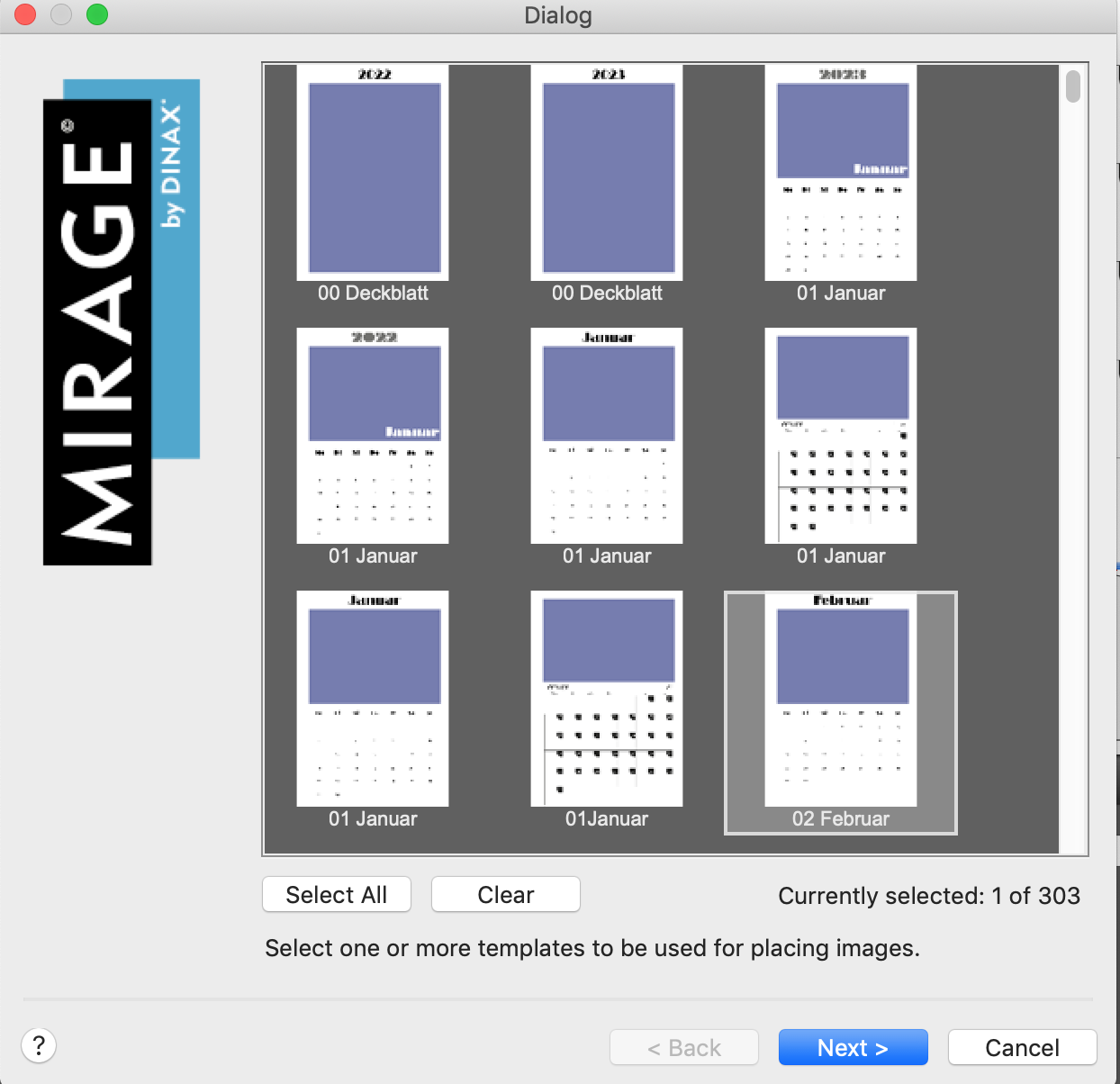
Templates are elements designed specifically to be filled with images. Templates contain slots. A slot is a square area in which an image can be placed. The images can be freely rotated and placed within the slots. Slots can overlap in part or in full, and be sorted in their position upwards or downwards as required.
Each slot is automatically assigned a number. Slots can be automatically filled with images in the Template’s browser as required. The same number can be assigned to multiple slots. If there are multiple slots with the same number and an image is dragged into one of these slots, all slots with the same number
will be automatically filled with the same image – ideal, for example, for passport and application photos.
“Masks” give users a number of image design options.
Masks are pixel or vector images that describe which parts of the slots will be printed. Of course, print layouts you create yourself can be converted
into “templates” and saved.
Mirage 2027 features a number of different templates.
2) Template Editor
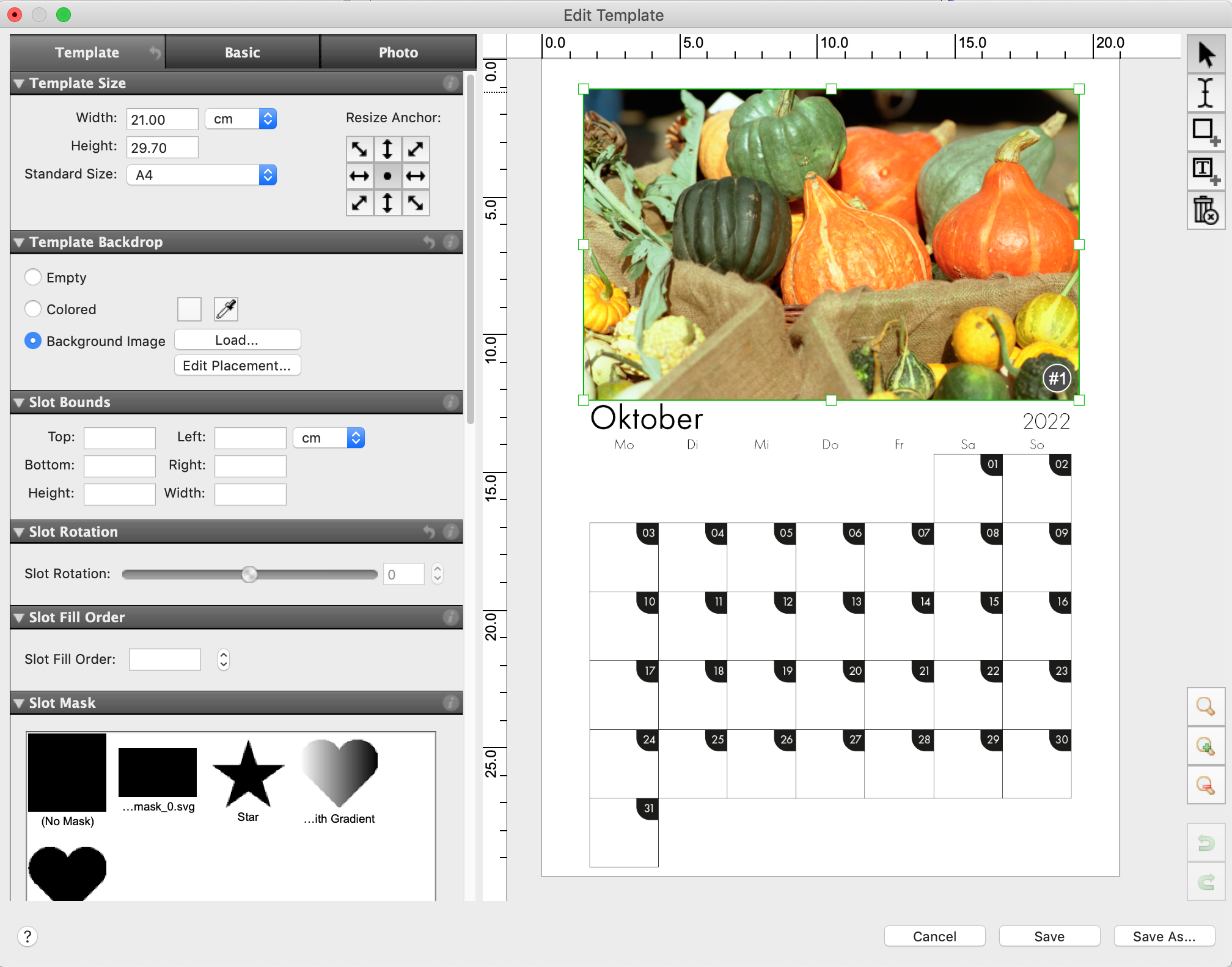
You can use the newly developed Template Editor to design your own creative and labor-saving print templates. Mirage’s ingenious operating concept
– with functions specially designed for creating templates – is naturally reflected in the Template Editor.
Here are a few examples of the functions:
In addition to the monochrome backgrounds, the settings for the “Template Background” allow you to select your own image files as a background.
You can edit the size and layout of the slots in the “Slot Frame” settings option. Select the slot you want to edit in order to adjust the slot frame.
You can use the “Slot Image Scale” settings to specify how the image files are scaled when inserted into the slot, e.g., proportional filling, etc.
You can use the “Slot Mask” settings to insert individual masks for every slot.
Click on the info button in the settings options or refer to the manual for more information on the settings options.
3. Free layout of files on the spread
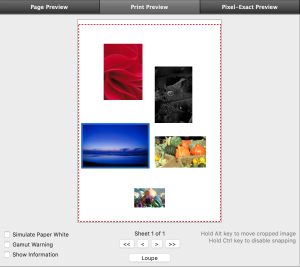
In Mirage 2027, images can now be freely and independently moved around/arranged on the spread. Because images can overlap, there are many new design options available to you,
allowing you, for example, to create collages and much more. This is particularly useful when designing multipage documents (photo albums, etc.). There are no limits to your creativity.
“Layouts” created in this way can be converted into a template – with a simple click – and used again at any time.
4. Clear program interface
We have tidied up Mirage. The new program interface of Mirage 2027 renders the previous window “Drop Files Here” superfluous. Simply drag your files to the “Print Preview” area of the Mirage window. The revised menu bar properly organizes all functions into groups. The “Mirage Job Archive” has also been integrated here. As a result, the previously independent program for managing
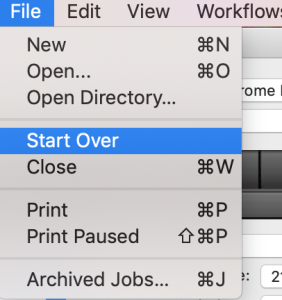
previous print jobs are no longer required. Changes to the settings dialog, e.g., adjustment/positioning of images, can now also be undone step by step as required. For instance, if you want to remove all files from the Mirage window without closing Mirage itself, you can use the menu item “File ⇒ Start Over”. As a result, not only are all copies removed from the printable area, but also all loaded documents.
5) Improved print preview
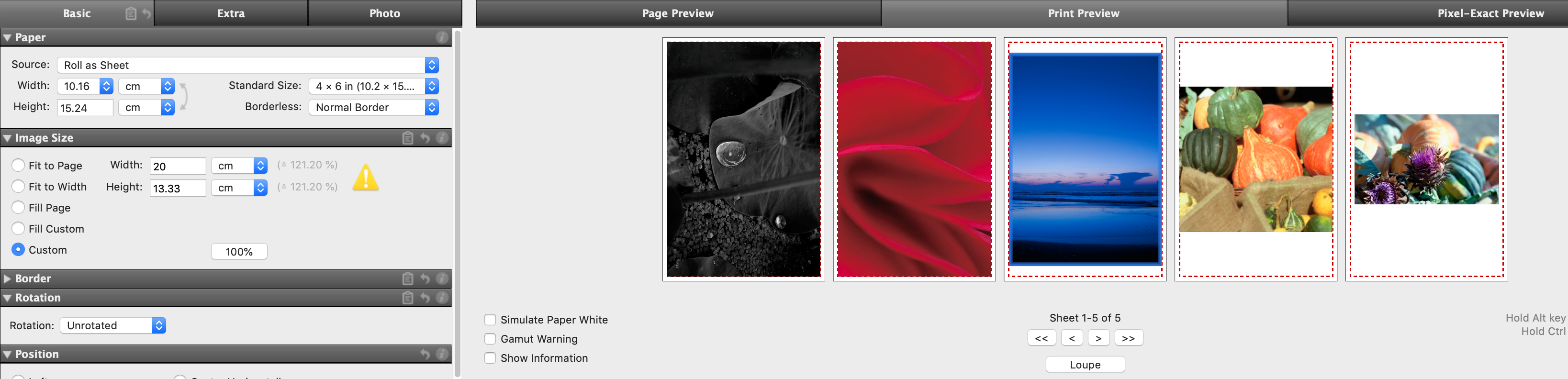
The clear print preview now always shows all print pages beside each other in a scrollable area. You can use the buttons “<<”, “<”, “>”, “>>” to move forward or back or to the start/end of the pages.
6) File & Templates browser
The File & Templates browser offers a much improved overview of uploaded image files and new templates. You can select, place, search, and change image files in the preview size as required. In addition, the “Filter” function offers a quick search, e.g., according to “already placed”, “not placed”, “portrait”, “landscape”, etc. Further images or templates can be placed into the printable area via drag and drop.

7) Multiple print jobs at the same time
With Mirage 2027, for the first time, you can create as many prints jobs as you want and prepare them separately. You can create a new print job via “File –> New” in the menu bar. Of course, you can also delete jobs that you have started, or that have already been printed. The new flexibility allows you to “pause” more complex jobs during t heir preparation in order to quickly print another file “in the meantime”.
8) “Undo/Redo” function
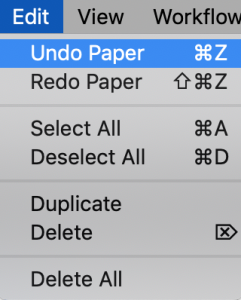
The last changes applied (e.g., in the settings dialog or by manually moving an image in the layout) can be undone as required. To this end, use the corresponding entries in the“ Edit” menu or the standard keyboard shortcuts (e.g.,“ Ctrl Z” & “Shift Ctrl Z”). Once a print job is sent, the “Print” button changes to “Print Again” provided that no changes have been made.
9) Improved handling/placement of embedded logos
If you want to integrate your own logos into print files, you can scale and freely move the logos in the print and page preview simply using your mouse. To this end, place the cursor over a manually embedded logo in order to display/use the corresponding “handles”.
10) New tools for image editing
”Blur”
There is a new panel under the “Photo” tab if you want to apply Gaussian “blurring” to images.
Please use the “Pixel-Exact Preview” to properly assess the strength of the effect.
“Drop Shadow”
The new panel is located under the “Extra” tab. Images can be printed with a drop shadow. You can choose the color of the shadow using a color chooser or pipet (as with colored borders). The drop shadow parameters can be set using sliders:
• Opacity
• Direction (in degrees, relative to the rotated image, i.e., the alignment of the shadow stays the
same even if the image is printed with rotation)
• Softness of the shadow
• Offset between shadow and image
11) New print mode “Only Black Ink”
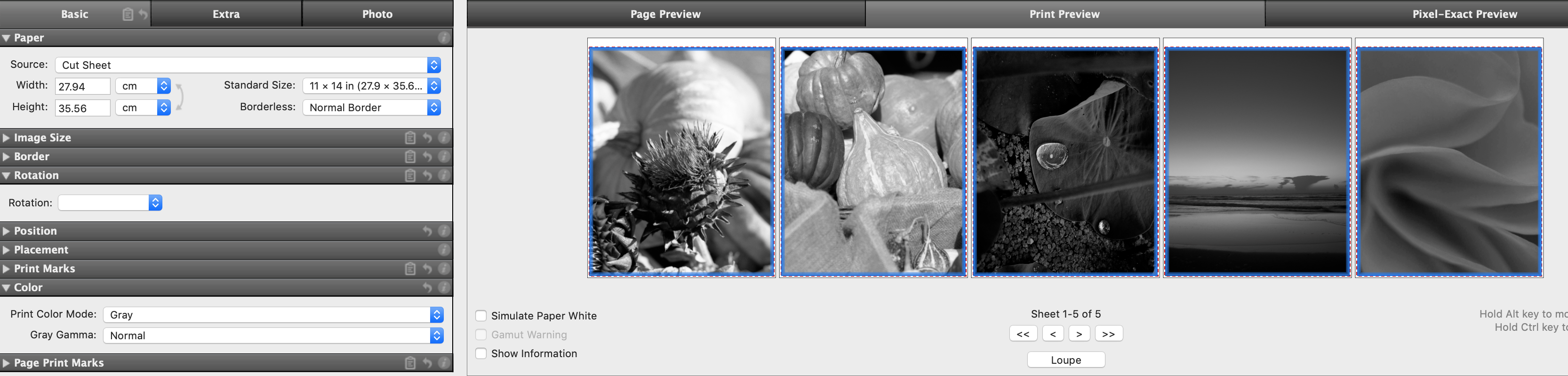
Some printer models offer a “Black” print mode. When you use this mode, only black ink (no gray ink) is used in the print job. This mode is only available with certain printer models and with certain paper/ink combinations.
12) Settings option “Simulation”
For special applications, experienced users may want to be able to simulate on their printer how the print will look on another printer, for example. This “proofing” function, as it is known, is now a component of all Mirage 2027 versions. The “Simulation” settings option can be found under the “Extra” tab. You can select all CMYK profiles available on your system as simulation profiles.

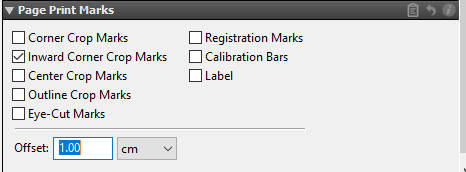
13) Additional print marks
In the “Print Marks” settings menu, you have the option of moving crop marks “inwards” via “Inset…” to help prevent white overlaps. In the new menu “Page Print Marks”, Mirage 2027 allows you to create marks for the entire spread in addition to the usual print marks (crop marks per image, etc.). If, for example, two images are placed on the spread, then the new page print marks, will be placed precisely around these two images. Of course, the gaps to the image can be set according to individual requirements.
The settings option “Page Print Marks” is hidden by default and can be made visible by right-clicking on the settings groups.
14) Support for current operating systems
Mirage 2027 supports current operating systems such as macOS 27 (Golden Gate), Windows 11, and Adobe CC 2027. To install Mirage 2027, your computer must run on Windows 10 or macOS High Sierra at minimum. For more information on Mirage 2026 and affordable upgrades from Mirage 4 to the current version, please visit our website: dinax.com

